Bulin AI logoBulin AI
Bulin 47 AIAI VideoAI Image
Create with Bulin AI
Bulin 47 AIAI VideoAI Image
Bulin AI logoBulin AI

A new character in the performance. A new idea on the canvas. Your next creation starts here.

Create

  • Bulin 47 AI
  • AI video generator
  • AI image generator
  • My creations

Information

  • Privacy policy
  • Terms of service
  • Acceptable use
  • Refund policy
  • Cookie policy
© 2026 Bulin AIIndependent AI creation tool. No artist affiliation or endorsement.
Bulin 47 AIAI VideoAI Image
Creation mode
Reference video 2–30s
Prompt is required
Estimated credits119 credits
View all

AI video generator. Give your idea a little motion.

Start with a scene in words, a first frame, or supported references. Choose your model and bring the shot to life.

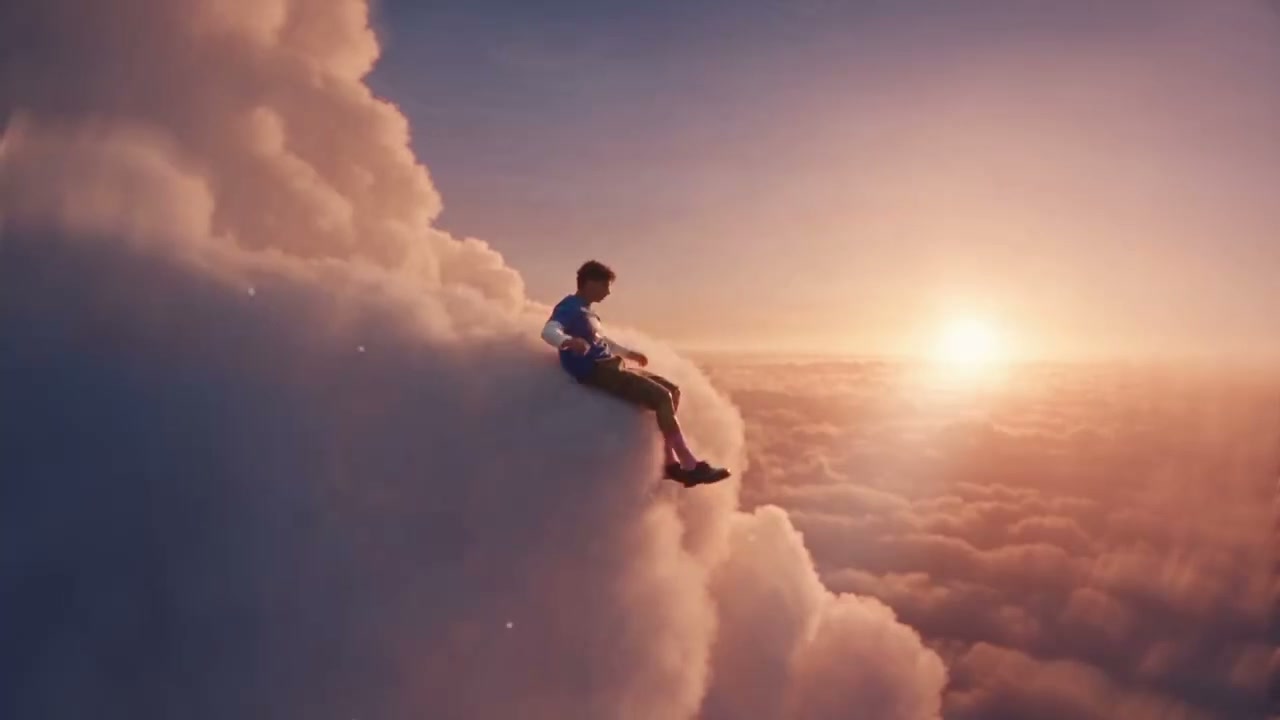
A character drifting through towering clouds at sunset

Start with the scene you want to see

The Bulin AI video generator turns a prompt and supported visual inputs into a generated clip. Use text to describe a new shot, a starting image to anchor its look, or reference input when the selected model supports it. The available controls change with the model, keeping its actual choices visible in the workspace. You can explore a character moment, a product reveal, or an imaginary location without assembling a full edit first. The output is a clip to review; the workspace does not automatically produce a complete film, captions, or a finished social campaign.

A character drifting through towering clouds at sunset

Make a video in three clear steps

Choose a starting point, shape one shot, then inspect the result.

  1. Prompt

    A character floats between towering clouds at sunset, with a slow sweeping camera.

    Text to video

    STEP 1

    Pick a model and input

    Select an available model and a supported mode: text, a starting frame, or references. Add the required media and inspect the upload preview.

  2. Seedance 2.0
    Resolution480p
    Length10s
    AudioOff
    AspectAuto

    STEP 2

    Describe the movement

    Write the subject’s action and the camera direction. Review duration, framing, quality, and sound controls where supported, then check the estimated credits.

  3. MP4

    STEP 3

    Generate and watch

    Sign in and submit the request. My creations shows your task status and completed result. Watch the full clip before downloading or starting another variation.

Small clips. Plenty of possibilities.

Explore motion from a first frame, build an imagined shot, or guide a model with references.

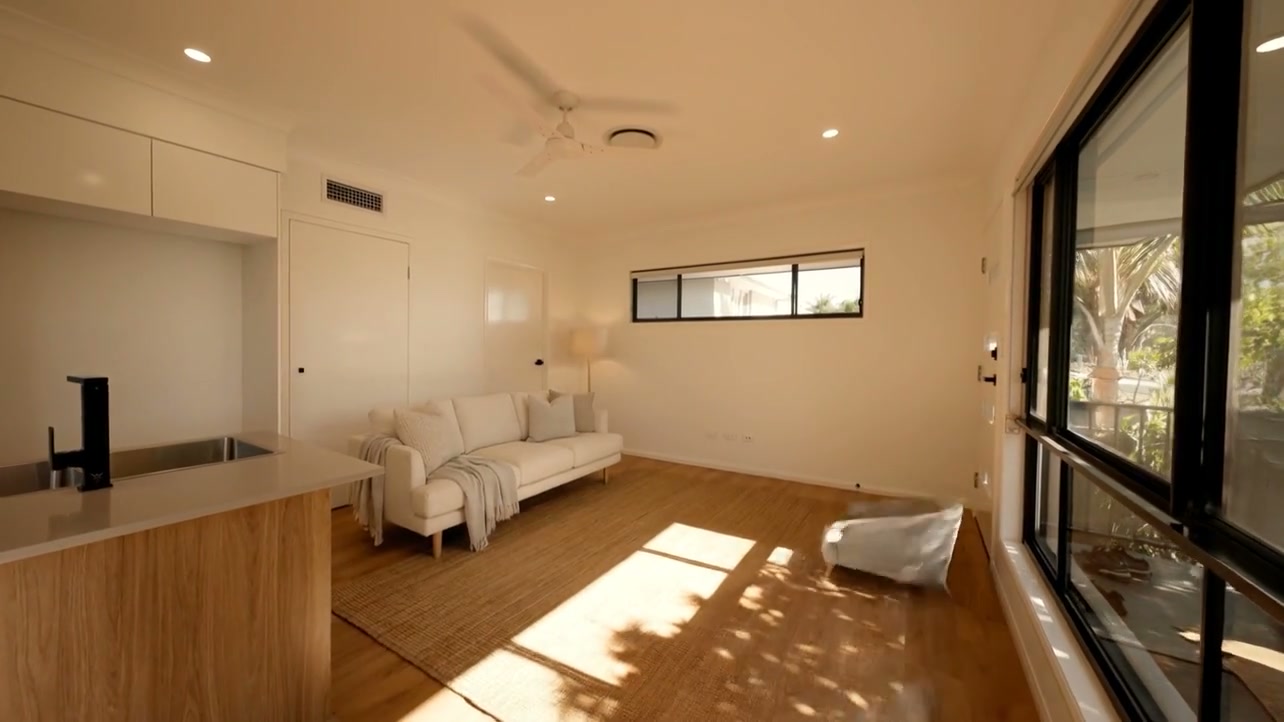
Give a room its next moment

Use the AI video generator to give a portrait, product photo, or illustrated scene a sense of movement. In single-frame mode, the image provides the starting visual and your prompt describes what happens next. Keep the intended action clear: furniture appearing, a camera moving forward, or light changing across an object. Adding many unrelated events can pull the result away from the image. Where supported, a separate end-frame control lets you add another visual boundary. The model still interprets the motion, so intermediate frames can change shapes or details.

Give a room its next moment

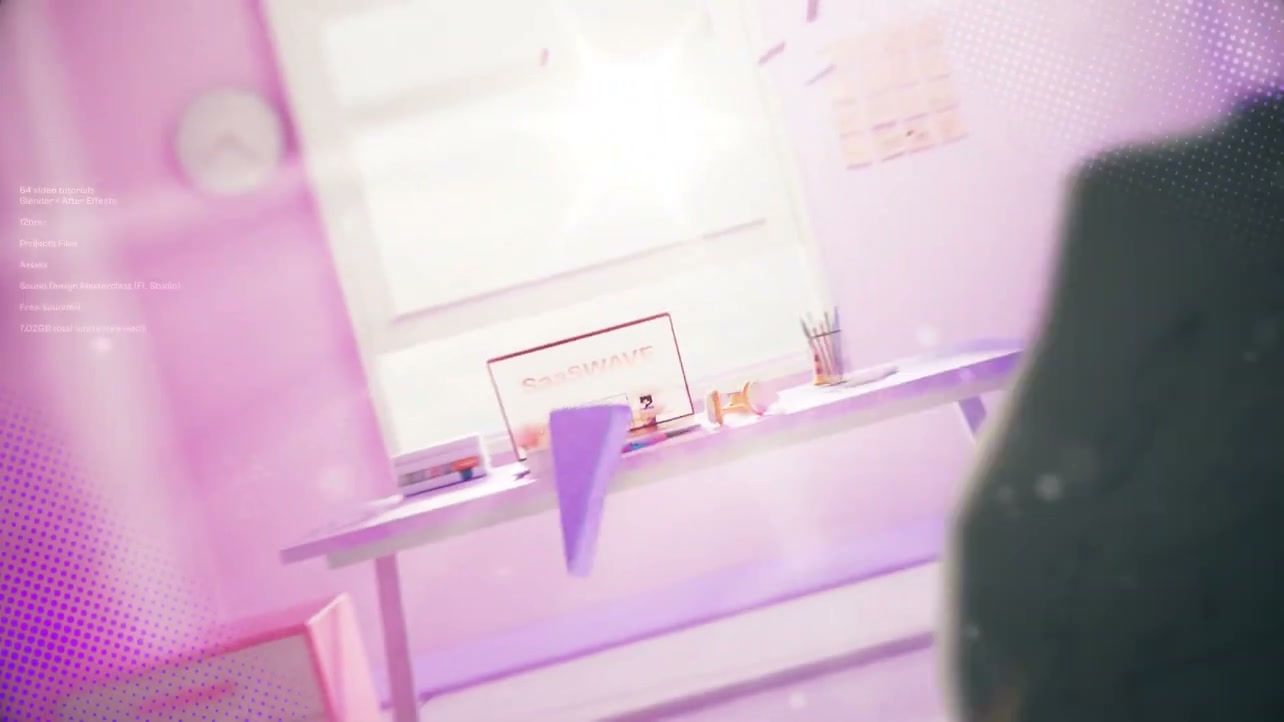
Move through an imagined digital world

A camera gliding through a digital workspace or a character drifting between clouds can help communicate a visual idea before a production team commits to it. The AI video generator is useful for concept clips, mood exploration, and testing how a scene feels in motion. Describe one subject, a clear action, and a camera direction that work together. The examples here illustrate creative directions rather than measured guarantees for every model. Physics, continuity, facial identity, and object contact can drift. Watch the entire clip before deciding whether it communicates the shot you had in mind.

Move through an imagined digital world

Guide a scene with a visual reference

When reference mode is available, supported images and other media can add information that a short prompt cannot convey alone. The AI video generator shows the inputs accepted by the selected model, along with preparation or trimming controls where needed. Use references that agree with the written request; conflicting outfits, settings, or movements can make the goal ambiguous. This general workspace is intended for flexible video ideas. For the prepared Bulin 47 freestyle, the homepage already contains its specific performance reference and character-replacement instructions.

Guide a scene with a visual reference

Keep the controls and the result in one place

The AI video generator helps you work through an idea without switching between separate model interfaces.

Choose for the task

Explore the currently available video models from one selector. Model choice controls which input modes and settings are valid, so use the visible options to decide how to frame your request.

Prepare media in the workspace

Supported preview, image preparation, and video trimming controls help you check the material before submission. A clearer starting image or a more focused reference segment can make the intended shot easier to describe.

Follow the actual task

The workspace shows the reported task stage and any available generation progress. It does not promise a fixed completion time. You can return to your creations to review a pending or finished request.

Build the shot around supported inputs

Start simple, then use the controls that fit the chosen model.

Text-to-video

Describe a fresh scene with a subject, an action, and a visual direction. Choose text mode when you want the model to invent the starting composition.

Image-to-video

Use a starting image to anchor the scene. Where the selected model supports it, add an end frame through the existing optional control.

Reference-driven generation

Use the reference inputs exposed for your chosen model. Each model has its own limits; the workspace validates the required inputs before submission.

Sound and output settings

Review the available duration, resolution, aspect ratio, and sound settings. Options and pricing differ by model, and some controls may be fixed or unavailable.

Credits that follow your video settings

Use the current estimate to compare your selected model and output options. Review the plans below before choosing your next creation.

Starter

For your first ideas.

$8.3/month

$100.0 charged yearly

2,400 credits/year

Up to 400 images

GPT Image 2Nano Banana Pro

Up to 240 videos

Seedance 2.5Kling 3.0 Motion Control
  • Up to 4K images and HD videos, depending on the model
  • Image editing, video creation & motion transfer
  • Watermark-free image & video downloads
  • Generation history in your account
Popular40% OFF · Save $238.8

Pro

For a steady creative flow.

$30.0/month$49.9/month

$360.0 charged yearly

21,600 credits/year

Up to 3,600 images

GPT Image 2Nano Banana Pro

Up to 2,160 videos

Seedance 2.5Kling 3.0 Motion Control
  • Up to 4K images and HD videos, depending on the model
  • Image editing, video creation & motion transfer
  • Watermark-free image & video downloads
  • Generation history in your account
  • Use credits across image and video models
Best Value50% OFF · Save $599.8

Business

For more creations, more often.

$49.9/month$99.9/month

$599.0 charged yearly

48,000 credits/year

Up to 8,000 images

GPT Image 2Nano Banana Pro

Up to 4,800 videos

Seedance 2.5Kling 3.0 Motion Control
  • Up to 4K images and HD videos, depending on the model
  • Image editing, video creation & motion transfer
  • Watermark-free image & video downloads
  • Generation history in your account
  • Use credits across image and video models

Basic

$0

Try before you subscribe

  • 18 one-time signup credits
  • Generation history included
  • Watermarked previews & downloads
  • Up to 3 images or 1 video
  • Watermark-free downloads require payment

Prices in USD; taxes and total shown at checkout. Subscriptions renew automatically; cancel in Billing settings. Subscription credits expire each period; one-time credits never expire.

Refunds: request within 72 hours. Used purchased credits and applicable non-refundable processing costs (up to 6%) are deducted. Terms · Refund Policy

AI video generator questions

A few practical details before you turn the idea into motion.

What can I make with the AI video generator?

Create individual clips from written scenes, supported starting images, or reference media. Common uses include visual concepts, character moments, product movement, and short scene studies. Capabilities depend on the selected model. This workspace does not promise automatic story editing, subtitles, a complete music video, or consistent characters across an entire series.

Can I turn a photo into a video?

Yes. Choose a model supporting single-frame input and upload your starting image. Describe the action or camera movement you want. The AI video generator uses the image as an anchor, but details can drift after the opening frame. Check faces, product shapes, small text, and the background throughout the result.

Can I choose both a starting and an ending frame?

Supported models expose an optional end-frame control within image-to-video mode. Start with the first image, then add the end frame when that option is available. The two frames guide the boundaries of the shot; the model generates what happens between them. Other models may accept only a starting image or different reference inputs.

Does the AI video generator include sound?

Some available models expose a Sound setting, while others have different audio capabilities. Check the selected model and the visible control before submitting. Generated sound may not match every action or spoken phrase. The fixed Bulin 47 tool has its own original-audio restoration workflow, which should not be assumed to apply to every general video request.

How long does a video take to generate?

There is no fixed completion time. It depends on the model, requested output, queue, and provider conditions. The workspace displays the task stage and reliable progress when available. Check the existing task before submitting again: a second generation creates a separate request and can use additional credits.

How do I get a result closer to my idea?

Describe one coherent shot, using an action and camera direction that fit together. With reference input, choose media that supports the same subject and setting as the prompt. Review what changed in the result before revising. Precise timing, physical realism, readable text, and exact identity are not guaranteed by the AI video generator.

Do I need credits and an account?

An account is required to submit a generation. Credits depend on the model and settings, with an estimate shown before submission. Browse examples and inspect the workspace before signing in. Check your account balance and the currently available purchase options before starting another request.

How is this different from Bulin 47 AI?

The AI video generator is a flexible workspace for different scenes and supported inputs. Bulin 47 AI is a fixed performance tool: one photo supplies the lead character while an existing clip provides the scene and movement. Use the homepage for that recognizable freestyle, and this workspace when you want to direct a different shot.

Keep creating with Bulin AI

  • AI image generator workspace exampleAI image generatorCreate or refine the picture for your next idea.
  • Bulin 47 AI workspace exampleBulin 47 AIPut one character into the fixed freestyle performance.

Set your next idea in motion.

Bring a clear scene, a useful starting frame, or a reference. The next shot starts in the workspace above.

Create a video
A stylized camera move through a pink digital workspace