
Create a video

ModelSeedance 2.5

Configured for this template

Burning Bridges reference · 29.0s

Lead · @Image 1
Background · optional

0 / 5 photos · One person per photo. Leave empty to keep the original crowd.

Burning Bridges AI Video Generator

The cup, the crowded room, the familiar performance. Burning Bridges AI brings your lead character into the scene, with optional photos for a supporting cast.

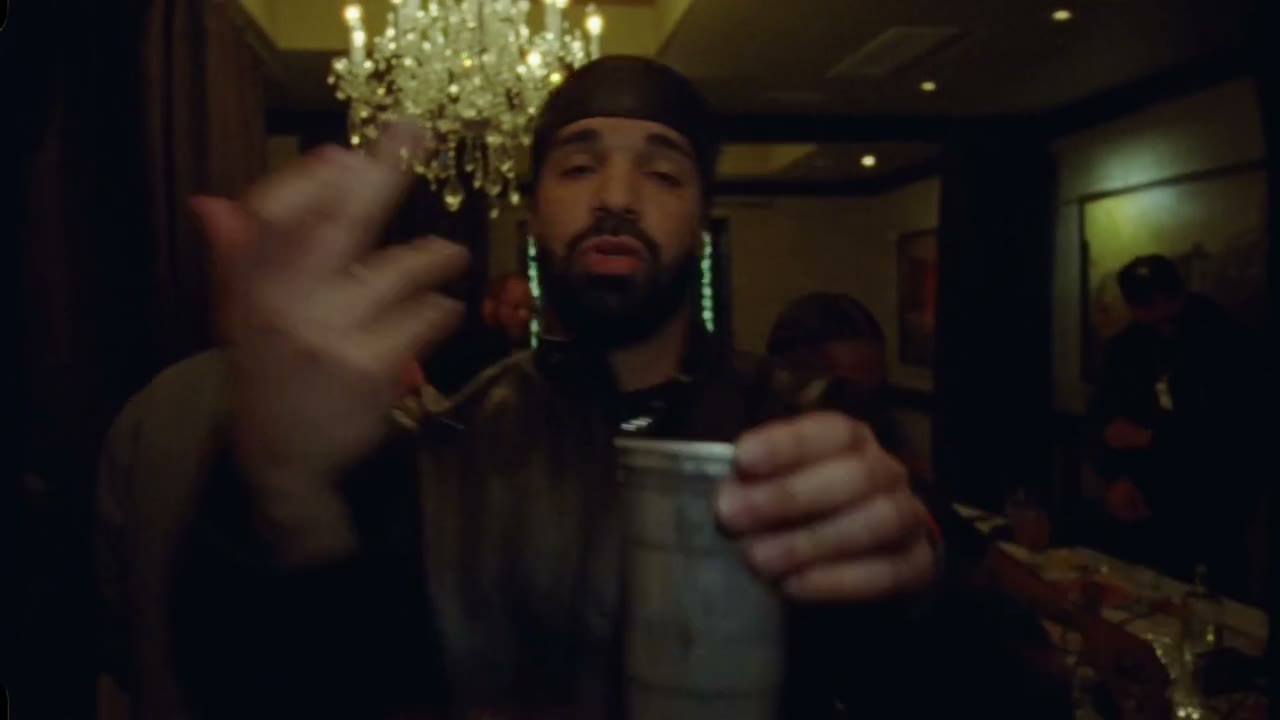
Burning Bridges AI supplied performance reference

A party scene with your cast

Burning Bridges AI starts with warm overhead lights, a crowded room, a lead holding a metal cup, and a close handheld camera. Your first photo supplies the lead’s hairstyle, build, clothing, and accessories; optional images supply supporting performers. Burning Bridges AI lets you recast this recognizable performance without gathering people to film another version. The preview shows the supplied scene, and the community variations below illustrate possible creative directions. They do not guarantee the outcome of your photos.

Burning Bridges AI: A party scene with your cast

Make your Burning Bridges AI video

Preview the performance, assign your references, and review the result.

  1. STEP 1

    Choose your lead

    Play the Burning Bridges AI reference and choose the character you want at the front. Upload one clear photo in the main-character slot. A person, costume, or fictional character you have permission to use can supply the look; avoid confusing group photos in this first slot.

  2. STEP 2

    Build the rest of the scene

    Add optional background photos only when your Burning Bridges AI idea needs a supporting cast. Keep one person in each image and check upload order. The existing prompt is ready to use; Custom prompt is available if you need to refine your intention within the supported setup.

  3. STEP 3

    Generate and review the performance

    Sign in, review the displayed estimate, and submit your Burning Bridges AI video. Uploading images alone does not start a paid generation. Watch the finished result in My creations, paying attention to the lead, supporting cast, cup, and sound before downloading it.

Explore the Burning Bridges AI scene

Cast the lead and optional supporting performers in a warm indoor scene.

Give the lead a complete look

The strongest creative decision in Burning Bridges AI is who holds the center of the room. A relaxed shirt, a formal jacket, or a recognizable fictional costume changes the character of the performance even though its starting action is familiar. Include enough of the person to communicate that choice: a tightly cropped portrait gives less information about sleeves, shoulders, and clothing than an upper-body photograph. Burning Bridges AI uses the whole character reference, so choose the outfit you actually want represented. Clear lighting also makes hair and accessories easier to distinguish. The source supplies the cup and performance; you do not need to photograph someone holding a matching prop. Generated hands, reflections, and close overlaps still deserve a check in the finished clip.
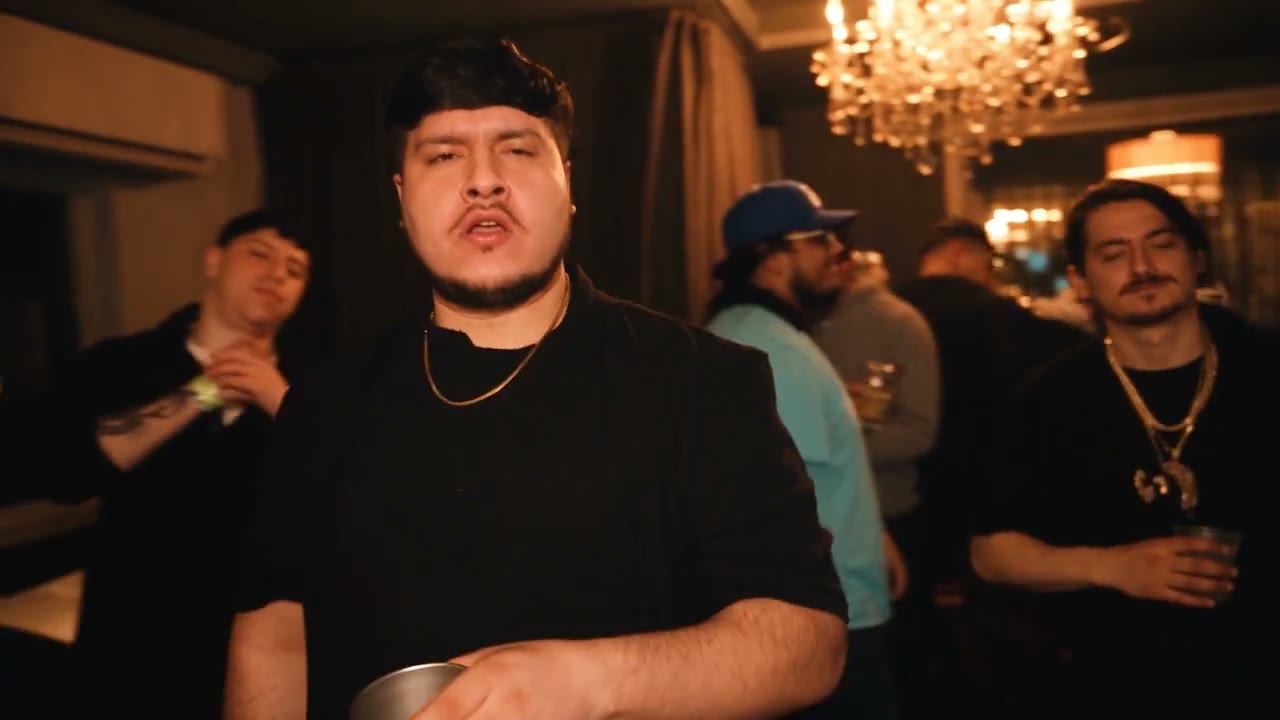
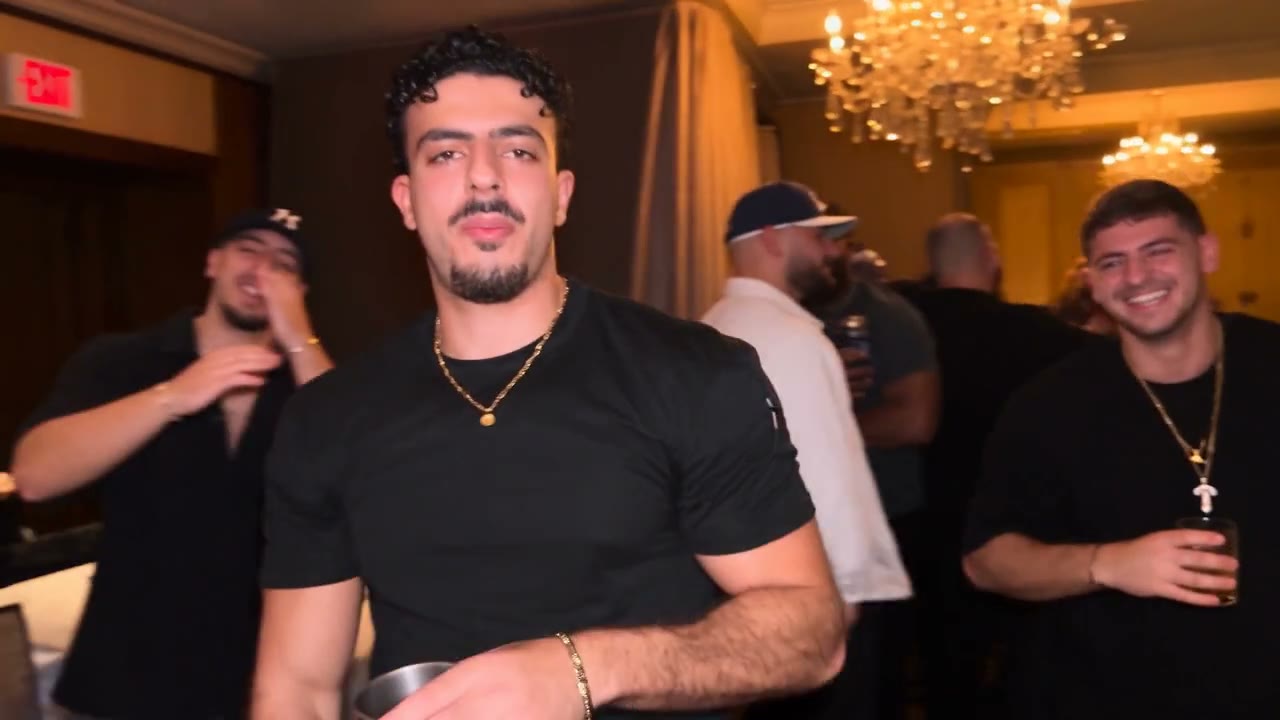
Give the lead a complete look

Add a supporting cast when it matters

A solo reference can be enough for a personal remix. When the people behind the lead are part of your idea, Burning Bridges AI also accepts optional background photos, one person per image. The workspace keeps the lead separate from these supporting roles so that the first photograph retains its purpose. Background references are initially arranged from left to right in upload order, with movement and visibility changing as the performance continues. Burning Bridges AI can accept up to five supporting photos in addition to the lead. You do not have to fill those slots to begin. Use distinctive outfits if you want to tell the cast apart, and review returns after occlusion: a person passing behind another performer is a demanding moment for visual consistency.

Add a supporting cast when it matters

Follow the performance with room to reinterpret

Burning Bridges AI uses a reference-based re-creation of the performance. The movement, pacing, handheld camera character, and warm interior guide the new scene, while the model can reinterpret staging and room details. This gives the cast space to fit the performance, but it also means the output is not a frame-exact copy of the preview. Burning Bridges AI prioritizes coherent characters and outfits within that scene. The workflow generates the picture without a new model soundtrack and then restores audio from the matching reference source. Listen to the delivered result as well as watching it. A familiar soundtrack can make a visual remix immediately legible, but it does not establish music rights, artist approval, or permission to distribute the performance commercially.

Follow the performance with room to reinterpret

Choose this scene for character-led remixes

Burning Bridges AI works around a social performance rather than an empty studio. Its close camera and surrounding cast make clothing, character contrast, and the relationship between foreground and background central to the result. These are useful ways to decide whether it suits your idea.

A personal entrance

Use Burning Bridges AI to imagine yourself or a consenting friend as the person commanding the room. The finished video can make a personal greeting or a clearly fictional social post. A readable outfit and an expressive reference give the lead a stronger identity than a small, distant face.

A cast with contrasting styles

Burning Bridges AI lets a creator explore a formal lead with casually dressed supporters, or a coherent fictional ensemble. Different photos should represent the intended people, not successive views of one person. Supporting references affect the cast; they do not add new narrative scenes or extend the routine.

A scene that already has momentum

Pick Burning Bridges AI when you like the supplied performance and room atmosphere. For an unrelated sequence, use AI Video instead. For a crowd moving in organized formation, STORM II offers a different two-reference setup. Choosing the right performance first is more useful than trying to turn one template into every type of video.

Credits for Burning Bridges AI

Check the estimate in the workspace for this performance and your selected settings. Account credits can also be used in the AI Video and AI Image tools; generation costs vary by model and request.

Starter

For your first ideas.

$8.3/month

$100.0 charged yearly

2,400 credits/year

Up to 400 images

GPT Image 2Nano Banana Pro

Up to 240 videos

Seedance 2.5Kling 3.0 Motion Control
  • Up to 4K images and HD videos, depending on the model
  • Image editing, video creation & motion transfer
  • Watermark-free image & video downloads
  • Generation history in your account
Popular40% OFFSave $238.8

Pro

For a steady creative flow.

$30.0/month$49.9/month

$360.0 charged yearly

21,600 credits/year

Up to 3,600 images

GPT Image 2Nano Banana Pro

Up to 2,160 videos

Seedance 2.5Kling 3.0 Motion Control
  • Up to 4K images and HD videos, depending on the model
  • Image editing, video creation & motion transfer
  • Watermark-free image & video downloads
  • Generation history in your account
  • Use credits across image and video models
Best Value50% OFFSave $599.8

Business

For more creations, more often.

$49.9/month$99.9/month

$599.0 charged yearly

48,000 credits/year

Up to 8,000 images

GPT Image 2Nano Banana Pro

Up to 4,800 videos

Seedance 2.5Kling 3.0 Motion Control
  • Up to 4K images and HD videos, depending on the model
  • Image editing, video creation & motion transfer
  • Watermark-free image & video downloads
  • Generation history in your account
  • Use credits across image and video models

Basic

$0

Try before you subscribe

  • 18 one-time signup credits
  • Generation history included
  • Watermarked previews & downloads
  • Up to 3 images or 1 video
  • Watermark-free downloads require payment

Prices in USD; taxes and total shown at checkout. Subscriptions renew automatically; cancel in Billing settings. Subscription credits expire each period; one-time credits never expire.

Refunds: request within 72 hours. Used purchased credits and applicable non-refundable processing costs (up to 6%) are deducted. Terms · Refund Policy

Burning Bridges AI questions

Photo roles, performance boundaries, sound, and starting a generation.

How many photos does Burning Bridges AI need?

Burning Bridges AI requires one lead photo and accepts up to five optional supporting photos. Empty background slots are valid. Show one intended supporting person in each additional image; the reference performance is already supplied.

Does Burning Bridges AI keep the exact room and camera?

Burning Bridges AI follows the pacing and handheld feel of the source while permitting variation in the room, composition, and staging. Assess it as a coherent re-creation with your cast, without expecting identical positions in every frame.

Can I change clothes with Burning Bridges AI?

Burning Bridges AI takes visible clothing from your reference photos. Include the desired outfit and a clear silhouette. There is no separate wardrobe selector, and unseen garment details may be interpreted by the model.

Is the original sound included?

Burning Bridges AI attempts to restore the matching reference soundtrack after picture generation. It does not create a new voice performance. Audio can fail separately, so check its status and listen before sharing; publication still requires the appropriate permissions.

How much does Burning Bridges AI cost?

Burning Bridges AI uses credits, with the current estimate shown for your selected settings. Check it before submitting or changing resolution. Every further generation has its own cost and does not guarantee that an earlier inconsistency will disappear.

Where will my Burning Bridges AI video appear?

Find your Burning Bridges AI task in My creations or the history view. Inspect its status and play the complete result, including people returning from behind the lead. The reference preview remains separate from your personal output.

Put your character at the front of the room

Start with the one person who defines your Burning Bridges AI scene. Add a supporting cast if the idea needs it, then review the estimate in the workspace.

Burning Bridges AI supplied performance reference